


This guide walks you through the full Medara onboarding process, from creating your account to claiming and managing a company profile. Completing these steps ensures your profile is fully activated and unlocks collaboration, discovery, and visibility across the Medara ecosystem.
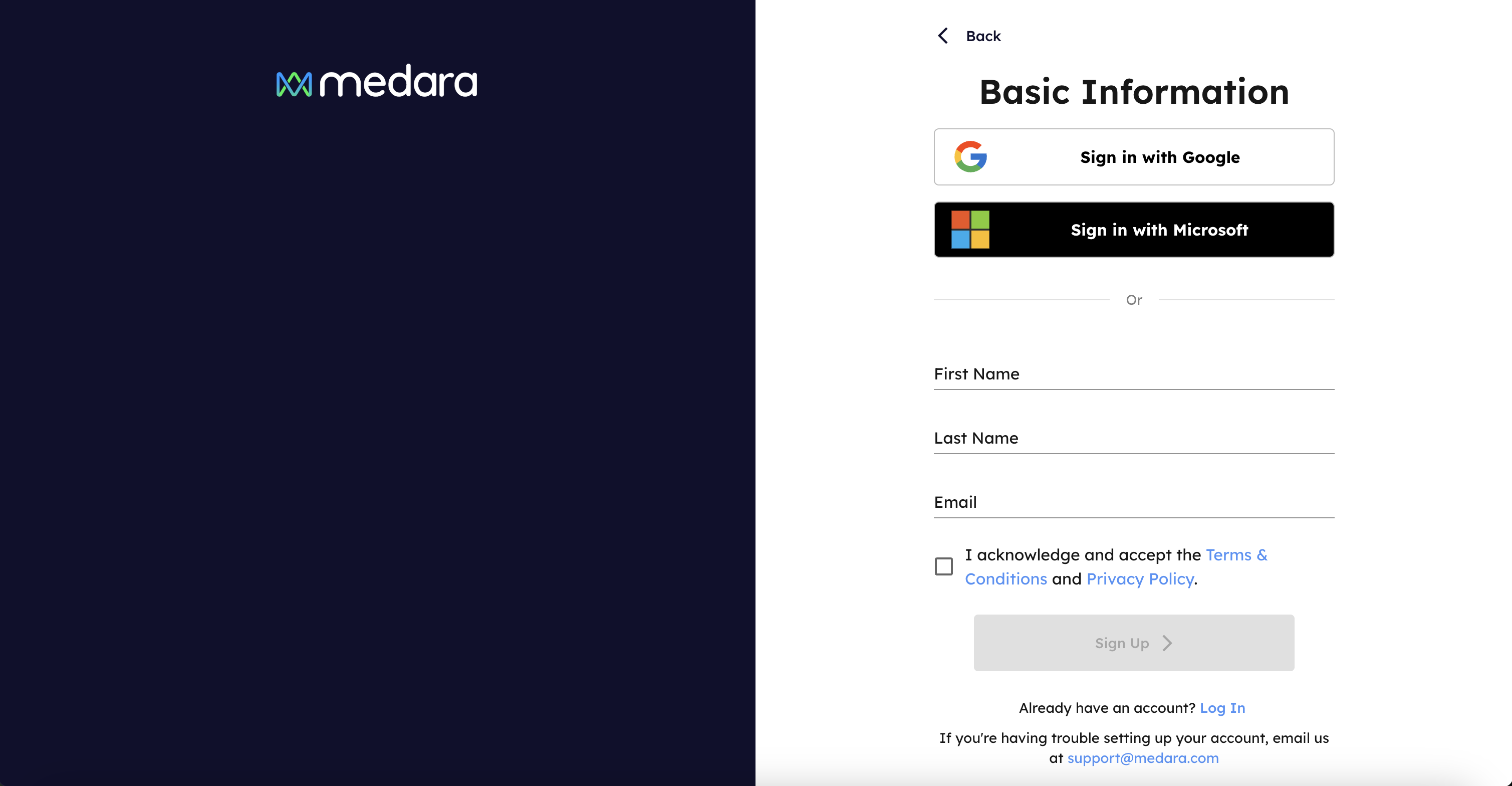
Start by selecting Sign Up on Medara.
You can create an account using:
Enter your basic information and accept the Terms & Conditions and Privacy Policy to continue.
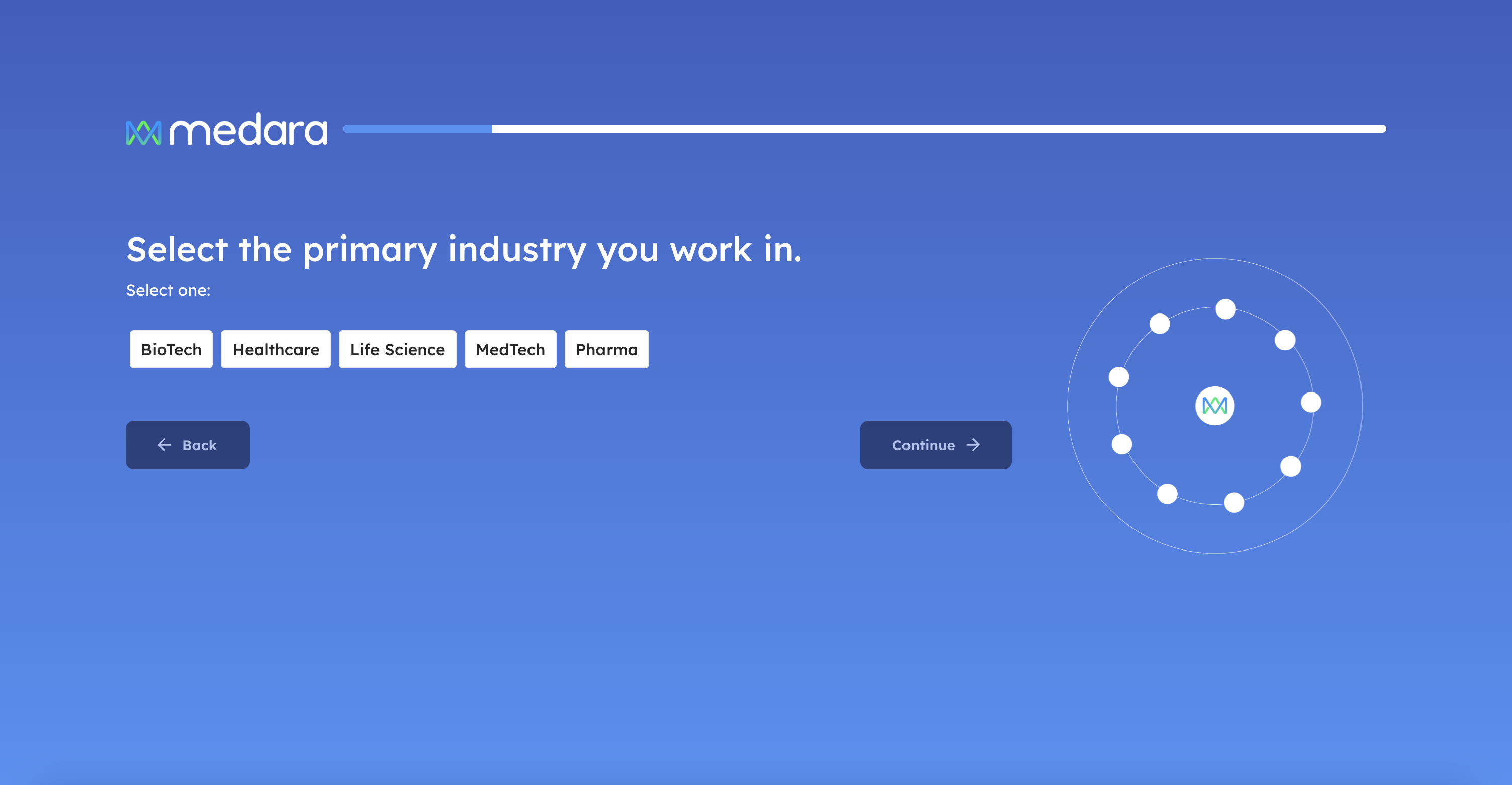
Choose the primary industry you work in:
This selection helps Medara tailor discovery results, recommendations, and collaboration opportunities to your space.

Next, select the markets you specialize in. You can search and select up to 10 markets.
These selections signal where you have domain expertise and improve how you appear in search results and matches.

Choose the functional areas where you actively contribute, such as:
You can select up to 10 areas. This helps Medara understand how you add value within your market.
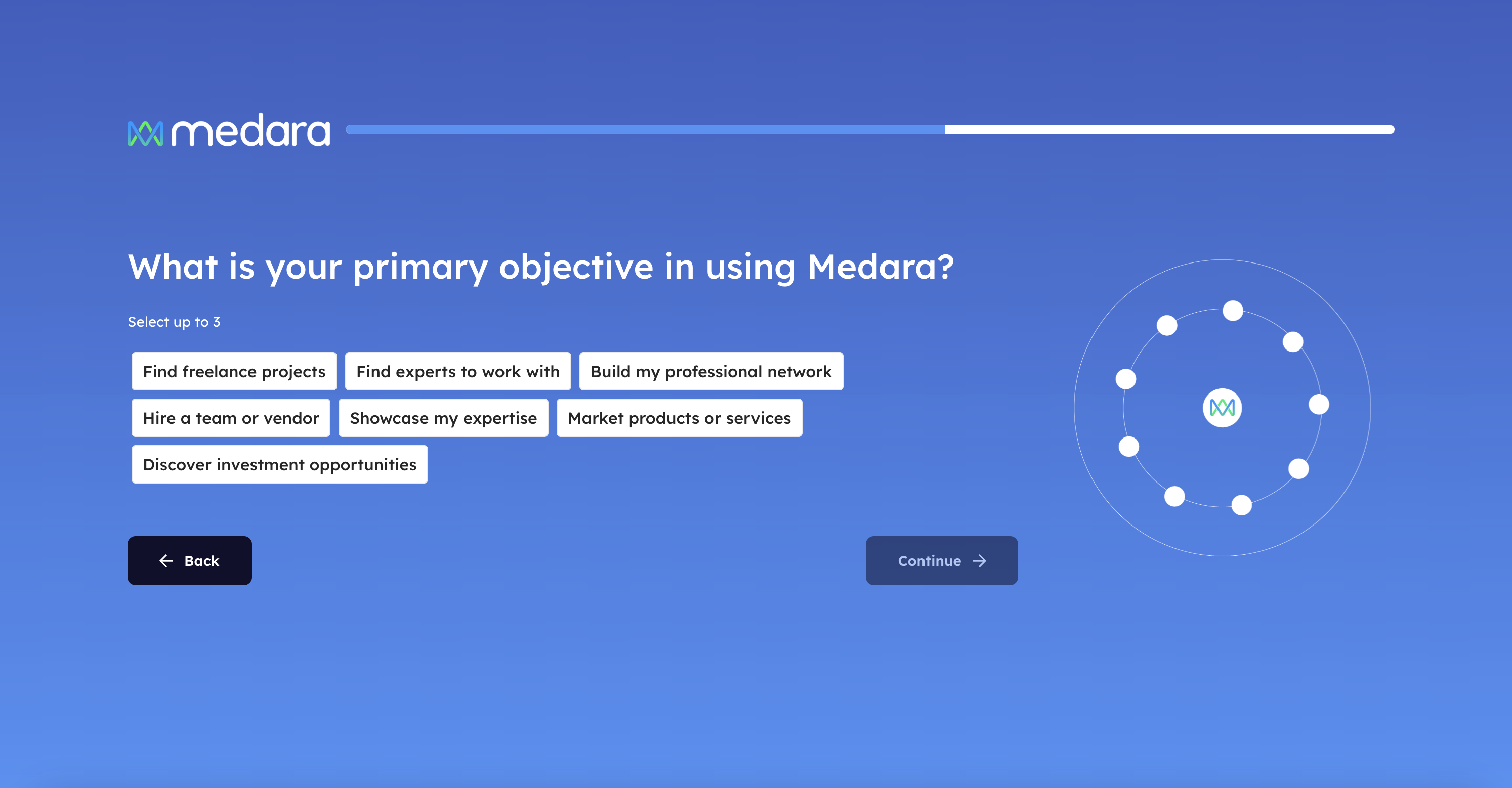
Select up to three primary objectives, such as:
Your objectives help personalize your dashboard and recommendations.

You can optionally connect your LinkedIn account to:
You’ll be able to review and edit all imported details before continuing.
If you skip this step, you can manually enter your information next.
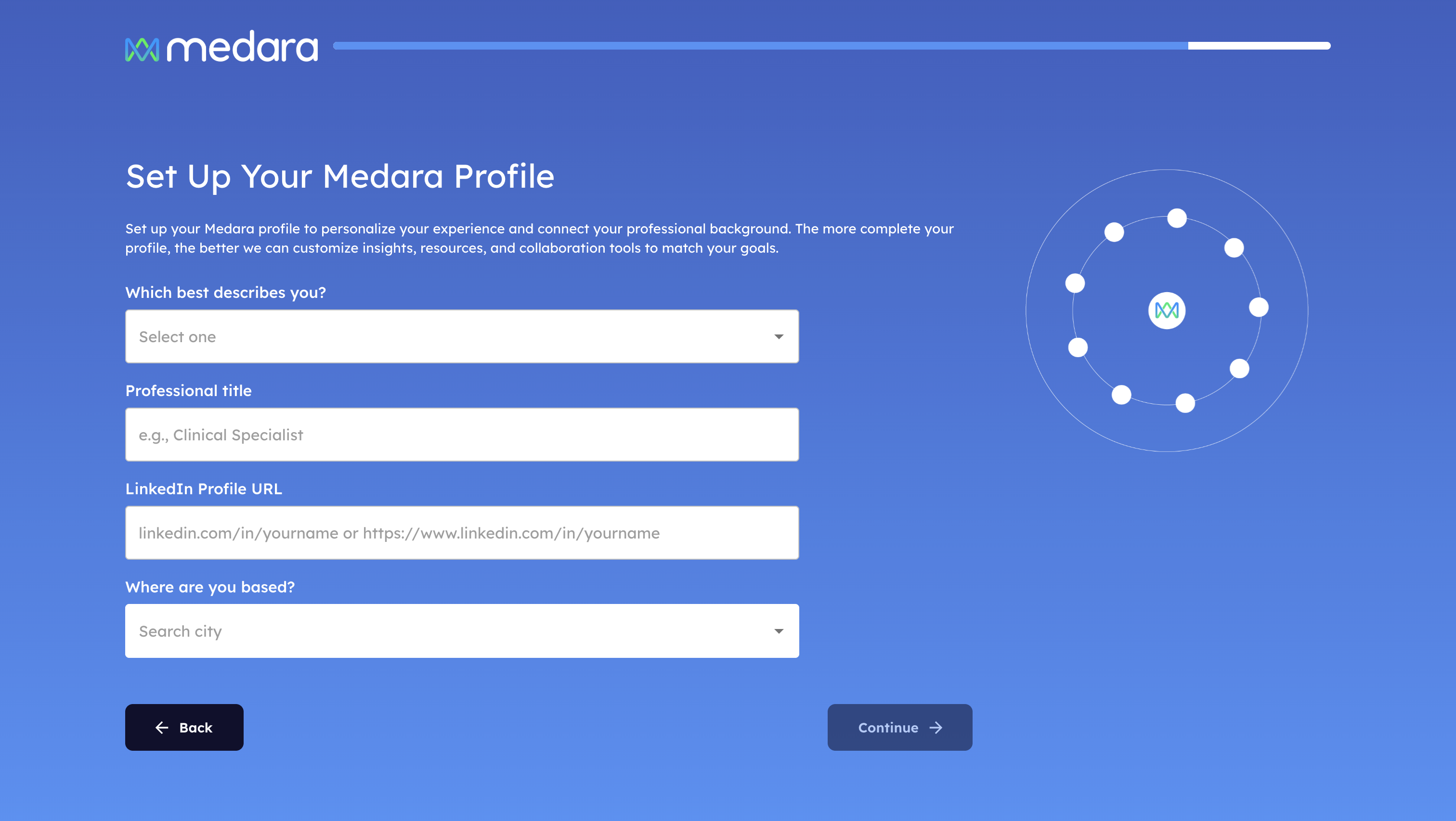
Enter or confirm:
A complete profile improves credibility and increases your visibility across Medara.

Search for your company by name.
This step links your personal profile to your organization.
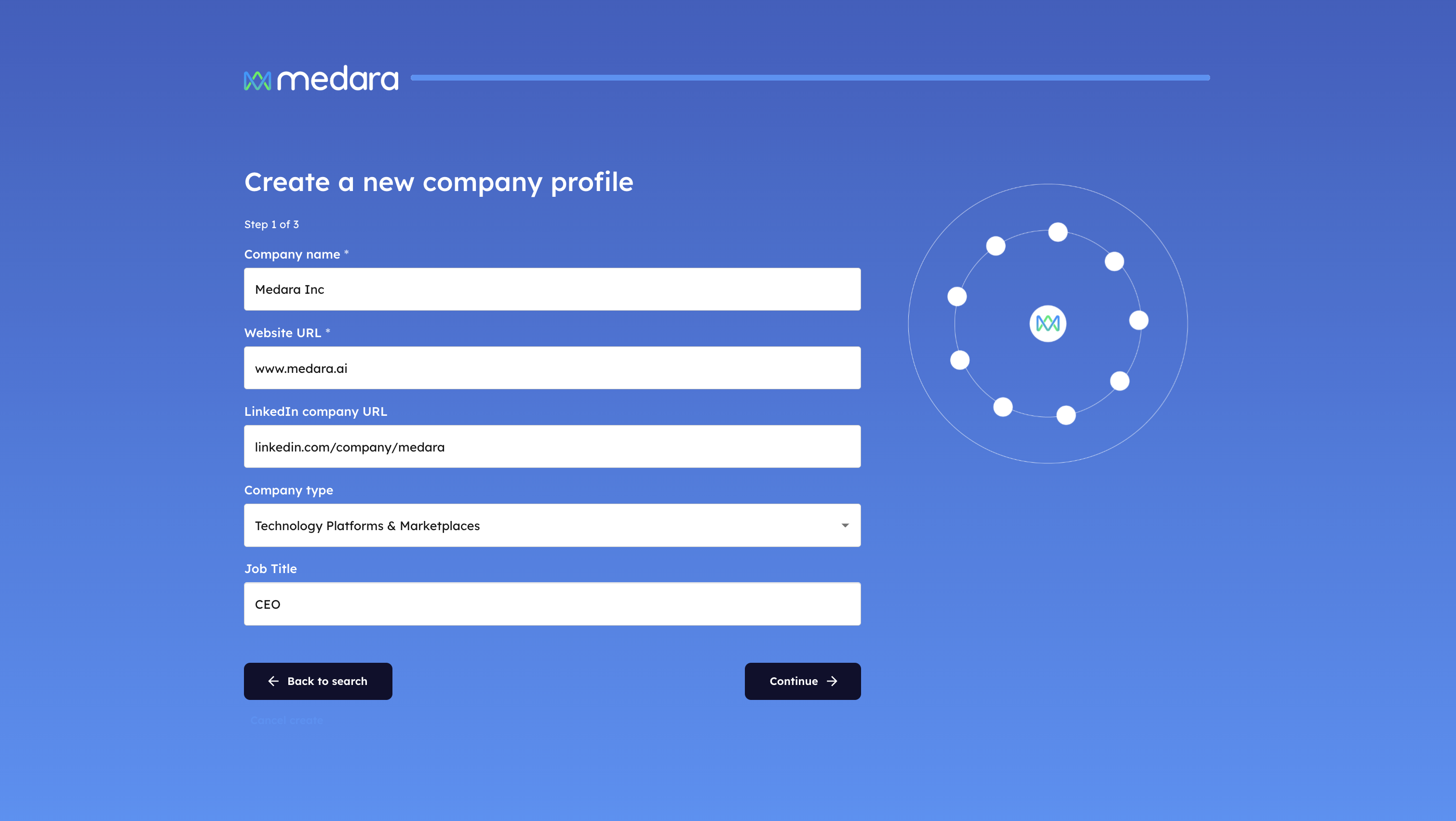
If you’re creating a new company profile, you’ll be guided through entering:
This establishes the foundation of your company presence on Medara.

Upload:
These assets appear on your public company profile and throughout the platform.

To verify your connection to the company:
Admin roles require additional approval before full access is granted.
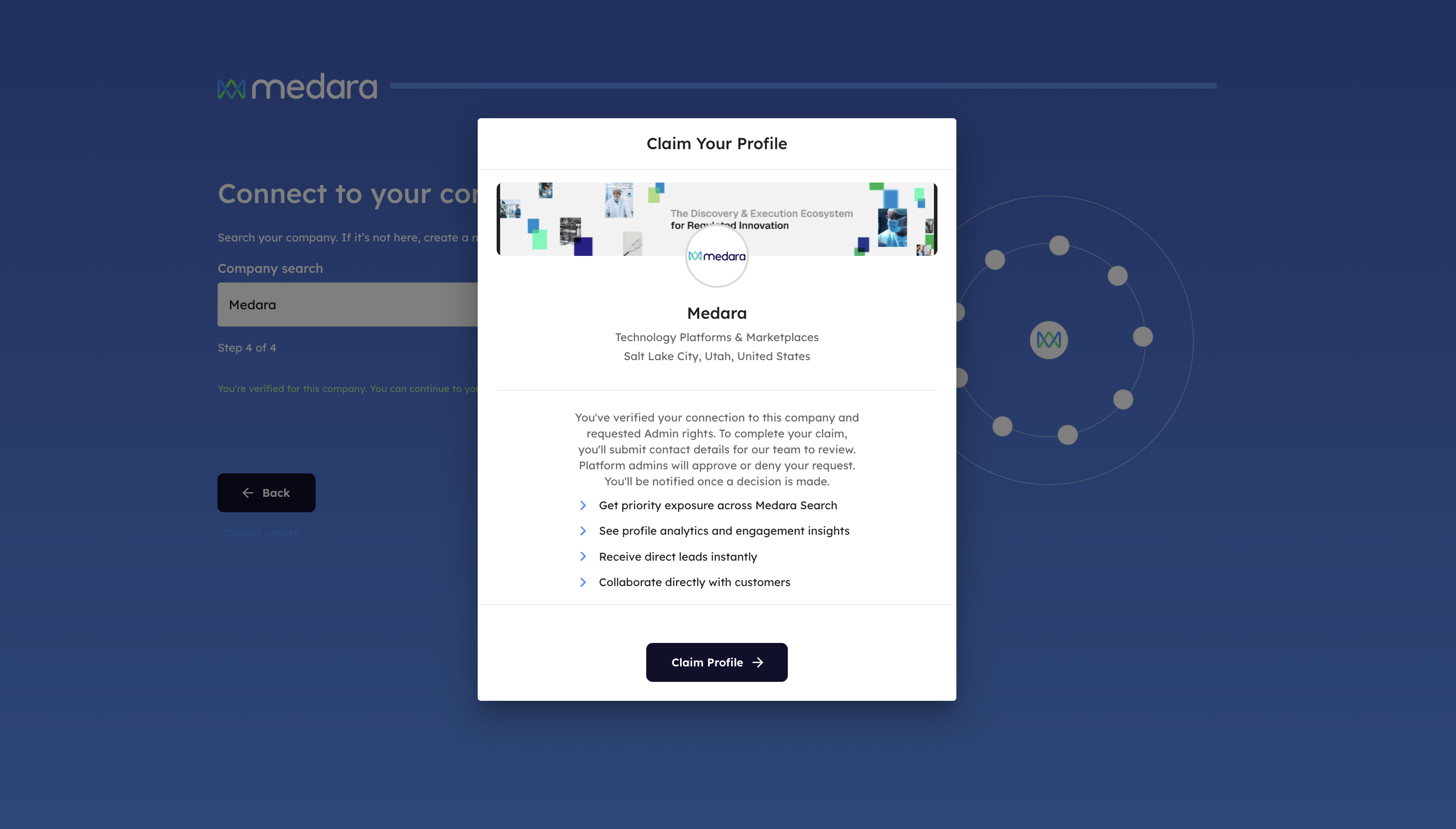
Once verified, you’ll be prompted to claim the company profile.
Claiming a profile allows you to:

To complete the claim process, enter and verify your phone number. This step helps ensure platform integrity and secure company ownership.
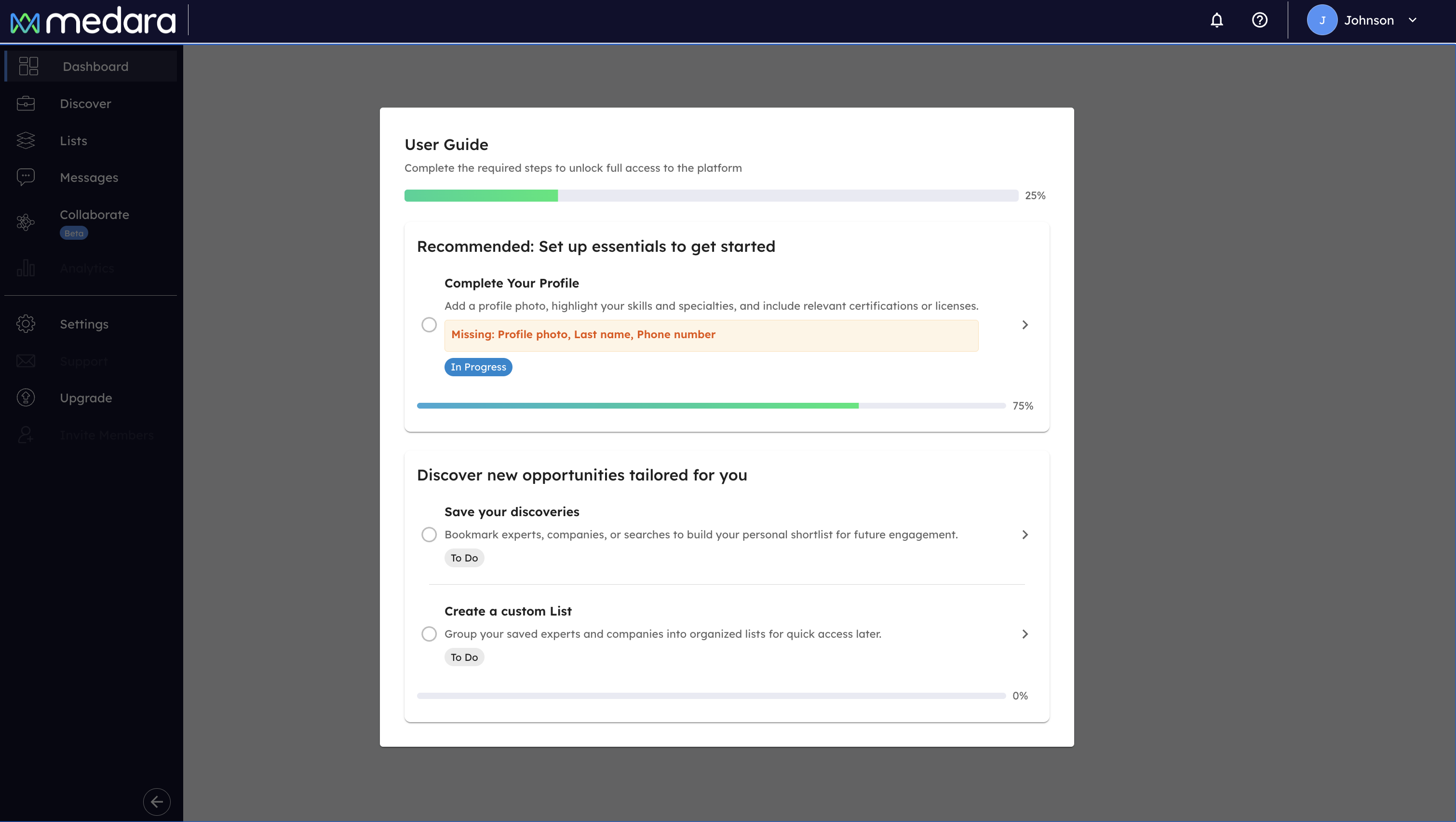
After onboarding, Medara will guide you through recommended setup tasks such as:
Completing these steps unlocks full platform access and improves your experience.


If you requested Admin access for a company:

Once approved, you can edit your company profile to complete required fields, including:
When all required fields are complete, submit the profile for final approval.

Once approved, your company profile will show as Verified, and you’ll have full access to:
If you run into any issues during setup, contact Medara Support for assistance.
